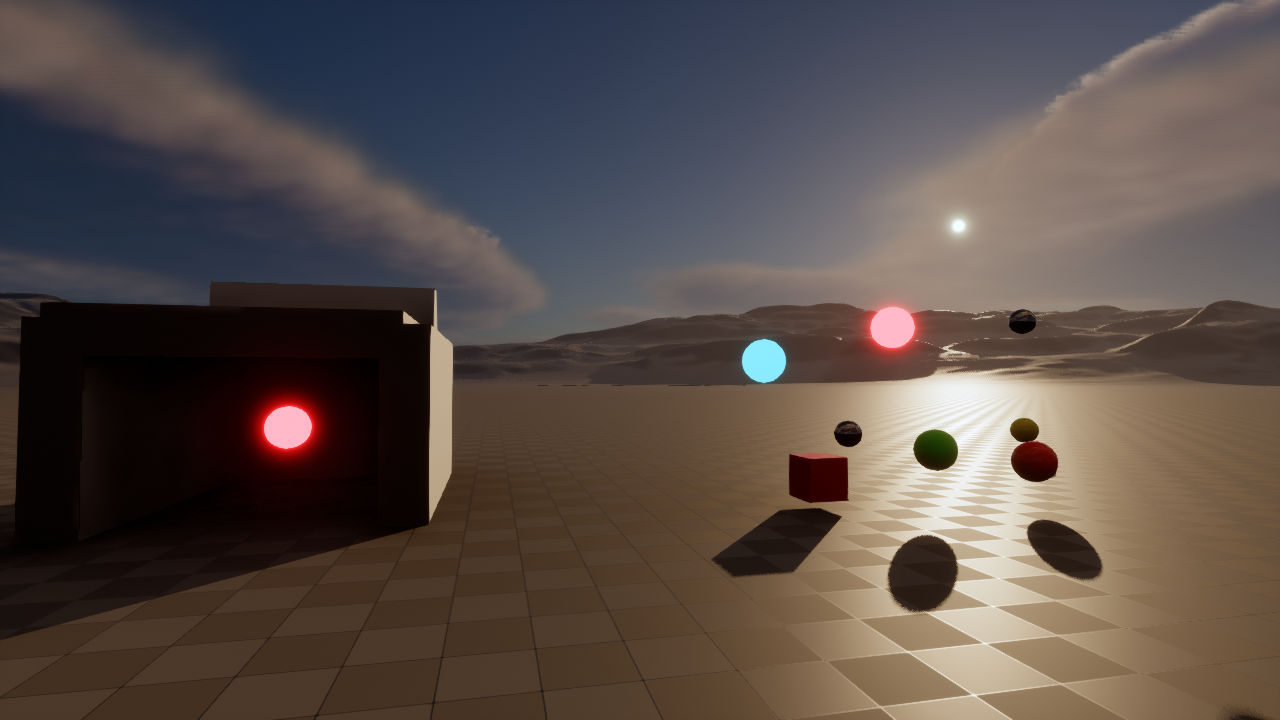
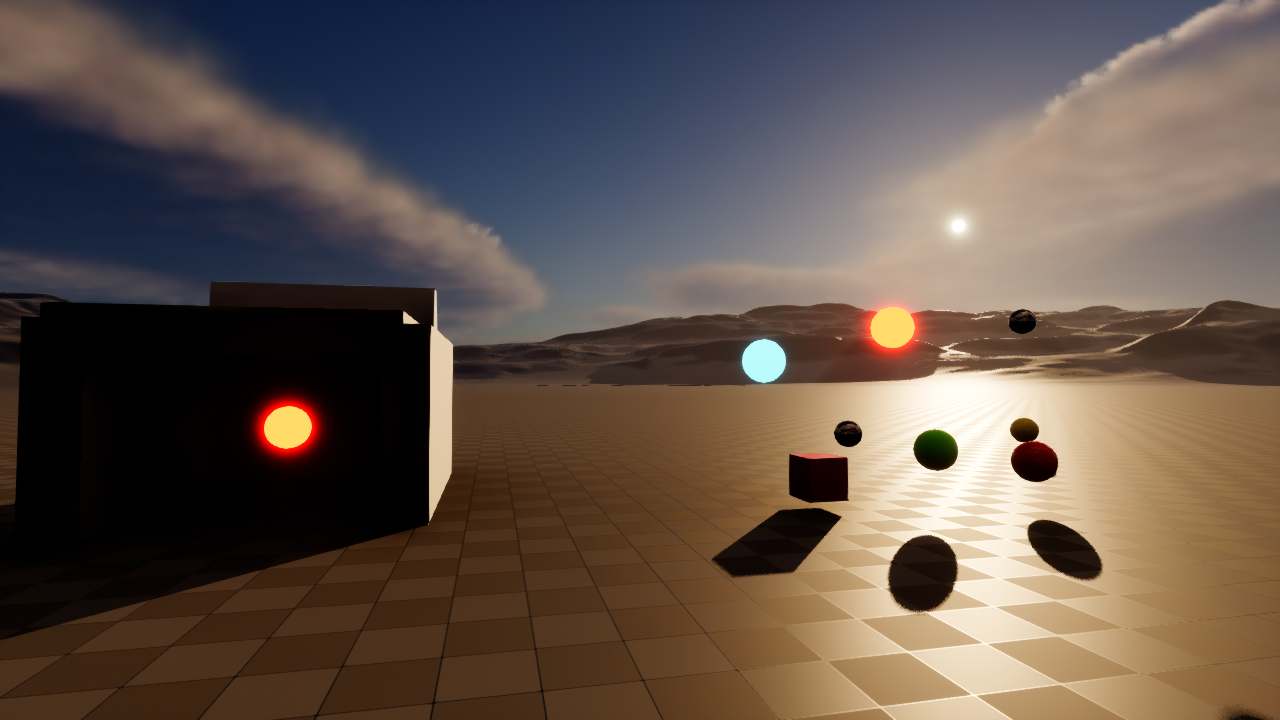
Unreal Look replaces Unreal Engine's tone curve with one of eleven operators. Tonemapper Studio edits the curve and its parameters, previews the draft in the viewport, and compiles the selected values for production rendering.
Install UnrealTonemapper, enable it in the editor's Plugins window, and restart when requested. A source distribution requires Unreal's supported C++ toolchain and a successful build of the project's editor target. Binaries from another engine version need rebuilding.
Open the plugin's toolbar action
The toolbar opens Tonemapper Studio. The underlying settings are also available in Project Settings → Plugins → Unreal Tonemapper.
Preview a change
Enable Preview in Studio's footer. Select a tonemapper in the left column and change a parameter on the right. The viewport frame identifies the preview. Keep the camera and exposure fixed while comparing results.
Compile the chosen values
Click Compile Tonemap. After compilation completes, Preview is unchecked and the newly compiled curve appears. This compiled snapshot is the version used when Preview is disabled and when cooking.
02 / STUDIO CONTROLS
Studio controls
The left column selects the operator and project working space. The right panel contains the active operator's settings. The footer distinguishes the compiled curve from the live Preview state.
AgX controls. Look selection changes the rows shown in the settings panel.
Control
Function
Tonemapper dropdown
Selects one of eleven draft operators. Each operator retains its own parameter values. Preview updates immediately when enabled.
Working color-space dropdown
Changes Unreal's renderer working-space setting and requests an editor restart. It is a project-wide color-management setting.
Compile Tonemap
Requests compilation of the current draft. Disabled when the draft matches the compiled snapshot or when a request is pending. A successful compile clears Preview.
Compile status text
Build and apply the tonemap means the current draft is clean. Uncompiled changes means a draft differs from the snapshot. Compiling... means an explicit request is pending.
Look dropdown
Visible for AgX. Selects True AGX, Golden, Punchy or ACES Like. Range and conversion settings are saved per look.
Reset beside Look
Returns the selected look to True AGX without resetting the saved values of other looks.
Parameter inputs and toggles
Edit the named value in the draft. Hover to read the tooltip. The separate inline reset restores that value alone.
More settings
Expands additional controls for the current operator. Hidden when no additional rows exist.
Reset to Default
Restores the active operator's parameters without compiling. AgX resets the active look's parameters, shared AgX output gamma and Force SDR.
Documentation
Opens this online guide in the default browser.
Current in the footer
Identifies the compiled operator and, for AgX, the compiled look. It can differ from the sidebar selection while editing a draft.
Color space in the footer
Shows the working space recorded at startup, distinguishing it from a newly selected configuration awaiting restart.
Preview checkbox and Active / Not active
Switch between the live draft and compiled rendering. Toggling it never requests compilation.
Tab or window close control
Closes Studio through the pending-changes prompt described below. There is no separate Close action in the panel.
Hable uses the same Studio controls, with a different parameter panel.The editor viewport in Preview. The frame is an editor overlay and is excluded from the comparison images.
03 / STATE AND COMPILATION
Draft and compiled settings
A draft contains the selected operator, look and parameter values. Editing saves the draft without replacing the last compiled snapshot. Preview chooses which of those two states the editor displays.
Action
Viewport result
Plugin compilation
Enable Preview
Display the draft.
None
Change operator, look or parameter in Preview
Evaluate the updated draft immediately.
None
Disable Preview
Return to the last compiled snapshot.
None
Edit with Preview disabled
Keep displaying the compiled snapshot.
None
Click Compile Tonemap
Replace the compiled snapshot after success; turn Preview off.
Explicit request
If Unreal's shader compiler is busy, the request waits. Studio displays Compiling... while the request is pending. Preview remains active until successful completion, so the viewport does not switch to the previous compiled curve while waiting.
Closing Studio
Use the normal tab or window close control. If the draft differs from the compiled snapshot, the dialog asks whether to compile before closing.
YesCompile the draft, wait for completion, then close Studio.
NoClose without compiling. Save the draft for a later session and return to the existing compiled curve.
CancelLeave Studio open.
Closing is blocked while a compilation is pending. A clean draft closes without this dialog. Closing Studio disables Preview.
Viewport frame
The repeated PREVIEW label and thin border identify draft rendering in editor viewports, including Game View. The overlay's default opacity is 0.6. It leaves the center clear and is omitted from screenshots, scene captures and packaged games. Its appearance settings remain in code and configuration; Studio does not expose them.
Other shader compilation
Unreal may compile shaders after installation, an engine update, a cache miss or a renderer configuration change. This engine activity is independent of the plugin's manual action and does not promote draft values into the compiled snapshot.
RENDERED EXAMPLES
Compare two tonemappers
Select an operator for each side, then drag the divider across the image. The range control also works with the arrow keys. Both images use the same camera and exposure.
↔
Default (ACES)AgX / True AGX
Parameters used for these two images
Default (ACES)
AgX / True AGX
Tonemapper demo lab
The comparison scene is /Game/UnrealLookDemo/Maps/L_TonemapperLab. It contains an approximate 24-patch color study, neutral samples, roughness and metallic series, colored objects, emissive highlights, and Manny/Quinn humanoid forms. The color patches use the ColorChecker 2005 sRGB dataset documented by Danny Pascale, Table 2. The builder decodes them to linear Rec.709 and converts them to the project's AP1 working basis. This is a digital study, not a calibrated physical chart.
Roughness changes the size and intensity of highlights; metallic samples also depend on the reflected environment. Emissive steps use relative scene-linear values, including 0.18 × 2^EV. They are not calibrated nits. Use them to inspect highlight compression, clipping and color changes at a fixed exposure.
In the source demo project, run py Script/BuildTonemapperDemoLab.py from Unreal's Python console to generate the level. Open the map and click Play for the looping 60-second camera tour. Click the viewport to give it keyboard focus.
Key
Demo control
Space
Pause or resume the camera. Light animation is independent.
L
Toggle light animation. Turning it off restores steady base lighting.
R
Restart the camera and animation clocks; resume the camera.
1–5
Jump to Studio overview, Color reference, Surface response, Highlight response or Lighting overview, and pause at that station.
H
Show or hide the runtime help overlay.
Compare the same station with steady lights and the same exposure. Preview can also affect Play in Editor in the current implementation, although its editor frame is hidden in Play. Turn Studio's Preview checkbox off explicitly to check the compiled snapshot. Cooked applications force Preview off.
The source project includes the full instructions in Script/TonemapperDemoLab.md. Manny and Quinn are existing project/template assets; their presence in this local demo does not authorize redistribution as part of the plugin.
Capture settings
These are unretouched 1600 × 900 PNGs captured from the normal editor viewport in Unreal Engine 5.0.3, D3D12 / SM5, using L_TonemapperLab. All images hold the same overview camera and steady editor lighting. Each operator was reset through its native reset action and captured in live Preview after a render warm-up. The working space is ACES AP1 / ACEScg; AgX's conversion checkbox is enabled at its reset default. The map uses manual exposure with compensation −4.5 and physical-camera exposure disabled.
The capture uses Unreal's native high-resolution viewport screenshot path. SceneCapture2D is excluded because Unreal Engine 5.0 does not allow Lumen for SceneCapture views, which can produce different indirect lighting and reflections. These examples show the operators in the demo scene; numerical preview/compiled parity is tested separately. View the recorded parameters for all images.
04 / OPERATORS
Tonemapper reference
Choose the operator with the first sidebar dropdown. Each keeps its own curve settings. The controls below describe this plugin's implementations; the reference limits are collected in one place.
Native Unreal
Default (ACES)
Captured default parameters
Min EV
-20
Max EV
0
Pre exposure
0
Saturation
1
Calls Unreal's FilmToneMap. The plugin's common exposure-range and saturation settings surround that curve; Unreal's post-process film controls remain part of the pipeline.
Four looks
AgX
Captured default parameters
Min EV
-12.47393
Max EV
4.026069
Pre exposure
0
Convert from ACEScg
On
Output gamma
1
Force SDR
Off
Applies an inset color transform, log2 exposure encoding, a polynomial contrast approximation, a look and an outset transform. Min EV and Max EV define the clamped log range.
True AGX uses the neutral look. Golden applies a warm channel slope, power 0.8 and saturation 0.8. Punchy uses power 1.35 and saturation 1.4. ACES Like exposes per-channel slope and power plus saturation.
Rational filmic curve
Hable
Captured default parameters
Min EV
-20
Max EV
0
Pre exposure
0
Saturation
1
Shoulder strength
0.15
Linear strength
0.5
Linear angle
0.1
Toe strength
0.2
Toe numerator
0.02
Toe denominator
0.3
White point
11.2
Output gamma
1
Uses shoulder, linear and toe coefficients to compress highlights and shape shadows. The shader applies an exposure bias of 2 and normalizes the response against White Point.
Shoulder Strength A 0.15; Linear Strength B 0.50; Linear Angle C 0.10; Toe Strength D 0.20; Toe Numerator E 0.02; Toe Denominator F 0.30; White Point 11.2.
Scalar fit
ACES Fitted (Narkowicz)
Captured default parameters
Min EV
-20
Max EV
0
Pre exposure
0
Saturation
1
Output gamma
1
Uses Narkowicz's five-coefficient scalar fit to compress each channel. Its curve coefficients are fixed; Studio exposes common grading and output gamma.
Per-channel compression
Reinhard
Captured default parameters
Min EV
-20
Max EV
0
Pre exposure
0
Saturation
1
White point
0
Output gamma
1
White Point 0 selects the classic x / (1 + x) curve. A positive white point selects the extended form, where input equal to that white point reaches output 1 before later processing.
Each channel is compressed independently, so bright colors can change hue and saturation.
Luminance compression
Reinhard (Luma)
Captured default parameters
Min EV
-20
Max EV
0
Pre exposure
0
Saturation
1
White point
0
Output gamma
1
Computes luminance with Rec.709 weights and applies Reinhard to that luminance. RGB channels share the resulting scale, preserving their ratios at this stage.
White Point has the same classic/extended behavior as Reinhard. Later grading or display conversion can still clip colors.
Highlight compression
Khronos PBR Neutral
Captured default parameters
Min EV
-20
Max EV
0
Pre exposure
0
Saturation
1
Output gamma
1
Uses the published PBR Neutral operator structure. It applies a dark-end offset, compresses the peak channel and reduces saturation toward the highlight limit.
The operator coefficients are fixed. Common grading and output gamma remain editable.
Lottes-inspired variant
Lottes Filmic
Captured default parameters
Min EV
-20
Max EV
0
Pre exposure
0
Saturation
1
Contrast
1.6
Shoulder
0.977
Toe
0.18
Toe exponent
0.22
Output gamma
1
Uses this plugin's existing rational-power construction. Contrast controls its input power; Shoulder changes the denominator exponent; Toe and Toe Exponent change the low-level and denominator terms.
Defaults: Contrast 1.6, Shoulder 0.977, Toe 0.18 and Toe Exponent 0.22. These are the variant's parameters, not the author's solved anchor coefficients.
Toe / linear / shoulder
Uchimura
Captured default parameters
Min EV
-20
Max EV
0
Pre exposure
0
Saturation
1
Max display brightness
1
Contrast
1
Linear start
0.22
Linear length
0.4
Toe control
1.33
Toe pedestal
0
Output gamma
1
Blends a powered toe into a linear section, then an exponential shoulder. P sets the curve's maximum display brightness, a its contrast, m the linear start, l the linear length, c the toe power and b the pedestal.
Defaults: P 1, a 1, m 0.22, l 0.4, c 1.33, b 0. These are normalized curve values, not a display calibration in nits.
Two custom responses
UE4 Legacy
Captured default parameters
Min EV
-20
Max EV
0
Pre exposure
0
Saturation
1
Filmic mode
On
S Curve strength
0
Output gamma
1
Filmic Mode defaults to enabled and selects a rational filmic response. Disable it for the linear legacy-style response. S Curve then blends in contrast, from 0 for no added S curve to 1 for its full effect.
S Curve defaults to 0 and is disabled while Filmic Mode is enabled.
Linear clipping
Source Engine (Valve)
Captured default parameters
Min EV
-20
Max EV
0
Pre exposure
0
Saturation
1
Output gamma
1
Clamps each graded input channel to the 0–1 range before output gamma and Unreal's display encoding. Bright highlights clip rather than rolling into a filmic shoulder.
Adjust common exposure grading to move the point where clipping occurs.
Additional AgX looks
The same scene, using the reset parameters of each look.
AgX / Golden
Captured default parameters
Min EV
-12.47393
Max EV
4.026069
Pre exposure
0
Convert from ACEScg
On
Output gamma
1
Force SDR
Off
AgX / Punchy
Captured default parameters
Min EV
-12.47393
Max EV
4.026069
Pre exposure
0
Convert from ACEScg
On
Output gamma
1
Force SDR
Off
AgX / ACES Like
Captured default parameters
Min EV
-6.5
Max EV
0.5
Pre exposure
0
Convert from ACEScg
On
Output gamma
1
Force SDR
Off
Slope X
1
Power X
1
Slope Y
1
Power Y
1
Slope Z
1
Power Z
1
Look saturation
0.9
05 / PARAMETER REFERENCE
Exposure, grading and curve controls
The right panel changes with the selected operator. More settings contains additional controls. Each input's tooltip describes its role; numeric bounds follow the parameter's metadata.
Common controls for non-AgX operators
Before the curve, the shader multiplies input by 2 raised to Pre exposure, subtracts the black point 2 raised to Min EV, clamps negative values to zero, then divides by the difference between 2 raised to Max EV and that black point. The denominator has a safety floor of 0.0001.
Control
Default
Effect
Min EV
−20
Sets the subtracted black point. Raising it removes more dark signal before the operator.
Max EV
0
Sets the range scale before the operator. Raising it makes the same input smaller at the curve; the curve still determines the final highlight response.
Pre exposure
0
Adds a stop-based bias before the range remap. +1 doubles the input; −1 halves it.
Saturation
1
Blends the curve result with luminance. 0 gives monochrome, 1 retains the curve's result and values above 1 increase color separation.
Output gamma
1
Applies a power of 1 / gamma after the curve. Values above 1 lift intermediate levels. Unreal still performs the final display encoding.
The common range controls are a grading operation before the curve. Their EV labels do not specify a monitor's HDR capacity. Output gamma 1 is neutral; setting it to 2.2 adds another artistic power operation before Unreal's encoding. Default (ACES) exposes the common grading block; the other non-AgX operators also expose their output-gamma control.
AgX exposure and look controls
AgX uses its own range handling. Pre exposure multiplies input before AgX's inset matrix. The curve takes log2, clamps to Min EV and Max EV and normalizes that interval before its contrast polynomial. A wider interval spreads more stops over the curve. Keep Max EV greater than Min EV.
Look
Min EV
Max EV
Pre exposure
Other defaults
True AGX
−12.47393
4.026069
0
Neutral slope, power and saturation
Golden
−12.47393
4.026069
0
Fixed warm look
Punchy
−12.47393
4.026069
0
Fixed stronger contrast and saturation
ACES Like
−6.5
0.5
0
Slope 1 per channel; Power 1 per channel; Saturation 0.9
ACES Like's Slope X/Y/Z multiply the three channels before its look power; Power X/Y/Z control the exponent. X, Y and Z correspond to the first, second and third RGB channels here. These operations take place inside the AgX look stage, before its outset and linearization.
AgX Output gamma defaults to 1 and applies after AgX's own output linearization. Force SDR defaults to off. Enable Force SDR to select the SDR AgX branch even when Unreal requests an HDR output branch; it does not change the operating system's display mode. The project-specific HDR branch otherwise activates for the supported 1000/2000-nit PQ or scRGB output-device cases.
Convert from ACEScg has a separate color-space meaning, described below. Its reset default is enabled when the configured working-space choice is ACES AP1 and disabled otherwise. Saved values can differ, and changing the working space does not automatically rewrite each look's saved checkbox.
Reset controls
The inline reset restores only the value beside it and appears when that value differs from its native default. Its empty slot remains reserved so the input stays in place. The main Reset to Default action restores the active operator's settings. For AgX it restores the current look's range and conversion settings, Output gamma 1 and Force SDR off. It does not select another look.
The reset beside the Look dropdown changes only the selection to True AGX. Previously edited look parameters remain saved. All three reset actions edit the draft; none requests compilation.
06 / COLOR MANAGEMENT
Working space, gamut and output
A working color space defines the RGB primaries and white point used to interpret color values during rendering. A gamut describes the colors represented by those primaries. Brightness range describes the relationship between dark and bright values; exposure and the tone curve map those values toward the output. Selecting a wider gamut does not by itself increase exposure or turn an SDR monitor into an HDR display.
Display output also has a transfer function, such as sRGB or PQ, and a target gamut. The Studio dropdown selects Unreal's working-space setting. It does not select an HDR output mode or replace the engine's final display conversion.
Studio choice
Meaning and use
sRGB / Rec.709
A working RGB basis with the familiar Rec.709 primaries and D65 white. Values in the rendering pipeline remain linear; the dropdown name does not apply the sRGB encoding curve to every calculation.
Rec.2020
Wider RGB primaries with D65 white. Choose it as part of a deliberate project color-management setup, not as an exposure control.
ACES AP0
The ACES AP0 basis with D60 white. AP0 and AP1 use different primaries and cannot be substituted by relabeling the same RGB numbers.
ACES AP1 / ACEScg
The AP1 basis used by ACEScg, with D60 white. Imported textures and external renders still need correct source-color interpretation.
P3 DCI
P3 primaries with the DCI white point.
P3 D65
P3 primaries with D65 white. The white point differs from P3 DCI.
Custom
Uses the renderer's configured red, green, blue and white chromaticity coordinates. Configure those in Unreal's renderer settings; selecting Custom alone does not define them.
Why the editor asks for a restart
This dropdown writes Unreal's Renderer Settings and invokes the engine's property-change handler. Unreal updates its working-space definition and preset chromaticities there. The engine nevertheless marks both the working-space choice and custom chromaticities as restart-required settings. That CPU update does not recreate every loaded render resource. Textures with a declared source color space can have converted data built for the working space, and that space participates in their derived-data cache key. Restarting reloads the renderer and its resources against the configured definition, so the comparison is made in one consistent RGB basis.
The plugin therefore offers to restart the editor. If you decline, it leaves a restart notification. The footer reports the startup working space so that a changed dropdown is not mistaken for a completed renderer restart. Save the project and restart before judging color differences. Compiling a tonemapper does not perform this renderer restart.
At the AgX operator boundary, the checkbox wraps the curve in two matrix operations. Enabled, it converts AP1 values through XYZ into linear Rec.709, evaluates AgX there, then converts the result back through XYZ into AP1. Disabled, it evaluates the same AgX curve directly on the values passed to it and returns them without those two matrices.
These are linear primary conversions. They do not decode an sRGB texture, change exposure, run an OCIO configuration or perform D60-to-D65 chromatic adaptation. White adaptation matters because ACEScg uses D60 and Rec.709 uses D65; this plugin's optional wrapper omits it.
Values entering AgX
Checkbox behavior
AP1 values, with the intention to run the Rec.709-oriented AgX approximation
Enable the wrapper. Account for its missing white adaptation when comparing with an external reference.
Actual linear Rec.709 values, in a separately controlled operator integration
Disable the wrapper. Applying an AP1-to-Rec.709 matrix to values already in Rec.709 would convert the wrong basis.
AP1 values, with the existing direct-on-AP1 artistic look intentionally retained
Disable it to preserve that behavior. The operator's Rec.709-oriented inset and luminance assumptions then operate on AP1 components.
The current plugin's LUT shader constructs an AP1 grading value before calling the custom operator. This is also true when the project dropdown says sRGB / Rec.709: the operator's immediate input is not determined by an imported texture's label. Do not infer that sRGB textures require disabling this checkbox. The plugin's native checkbox default follows the project's AP1 choice for historical behavior; it is not automatic detection of the operator's input gamut.
For Rec.2020, P3 or a Custom project, do not use this checkbox as a general working-space conversion. The inspected shader uses a fixed Rec.709-to-AP1 grading path, so the dropdown alone does not establish a fully adapted custom-operator pipeline for those spaces. Validate the complete project configuration before delivery.
Avoid applying the same gamut transform in both an upstream material or color-management pass and the AgX wrapper. Verify the RGB basis at the operator boundary; changing a texture's import label or adding a final display transform elsewhere is not proof that this input has changed. Keep exposure, grading and display output fixed while comparing conversion choices.
07 / IMPLEMENTATION AND TESTS
Rendering path and validation
Preview evaluates the same curve functions as production, using live uniforms to build a LUT. The compiled variant uses constants. Both feed Unreal's native lookup. Exposure, bloom, vignette, film grain, artistic LUT blending, post-tonemap materials and output encoding keep their native order.
The recorded SDR GPU test compares all 32,768 cells of each 32³ LUT in 20 cases on Unreal Engine 5.0.3, D3D12 / SM5. The maximum observed difference was one native 10-bit LUT code. Four graded profiles matched exactly. This is measured preview/compiled parity within a tolerance, not a promise of identical floating-point arithmetic.
Operator names and reference limits
AgX is a polynomial approximation based on the minimal implementation, with custom controls and a project-specific HDR branch. True AGX is a historical look label; no Blender/OCIO match is certified. ACES Fitted uses Narkowicz's scalar fit rather than a complete ACES output transform. Default uses Unreal's own FilmToneMap.
Lottes is the plugin's existing artistic variant and differs from the author's anchored coefficient construction. UE4 Legacy and Source Engine are custom styles without a verified match to those engines' full rendering pipelines. Hable, Khronos PBR Neutral and Uchimura retain identifiable published structures, but custom grading changes their reference response.
The source audit checks selected formulas, including Uchimura's corrected toe interpolation and Reinhard Luma's Rec.709 luminance weights. It does not replace an independent GPU comparison. The recorded checks do not certify absolute HDR luminance, a calibrated display, other engine versions or a complete external color-management configuration.
Comparing an external reference
Use a pinned reference version with the same input primaries, white point, exposure, operator parameters and output encoding. First compare the isolated operator in linear light, then the complete pipeline including LUT sampling and display conversion. Neutral ramps, saturated colors and skin colors reveal different errors; a single scene screenshot cannot cover them all.
For repeatable measurements, use manual exposure and disable grain, automatic adaptation and temporal effects. If Preview and production agree but both differ from the reference, investigate the operator and color transforms rather than treating parity as evidence of external accuracy.
08 / BUILD AND PACKAGE
Compatibility and committed rendering
The recorded rendering measurements cover Unreal Engine 5.0.3, D3D12 / SM5 and SDR. Editor Development and standalone Game Development C++ builds passed in that environment. Other engine versions, renderers, HDR displays and packaged visual output need their own validation; a successful C++ build alone does not check the image.
Cooking
Compile the intended curve and inspect it with Preview disabled before cooking. Cooking uses the committed constants. Cooked executables force Preview off and use cooked shaders, so an uncompiled editor draft is not a production preset.
Moving the source project
Keep Config/UnrealTonemapperCompiled.ush with the source project. It records the last explicitly compiled constants separately from the editable draft configuration. Startup reads that snapshot without deliberately promoting the draft. Cooked applications do not need this configuration file at runtime.
Shader integration
The plugin uses a generated project-local shader mirror and a virtual source mapping. It leaves the installed engine files untouched. Check compatibility with other plugins that replace the same shader mapping.
09 / TROUBLESHOOTING
Common problems
Settings change but the viewport stays the same.
Enable Preview to display the draft. With Preview disabled, the viewport deliberately keeps the compiled snapshot. Also check the post-process Tone Curve Amount; reducing it blends away the selected curve's contribution.
Compile Tonemap is disabled.
The draft matches the committed snapshot or a compilation is pending. Wait for the pending request, or edit a parameter. Returning all edited values to their compiled values makes the draft clean again.
Preview and compiled output look different.
Compile the exact draft being compared. Fix the camera, exposure and post-process settings, wait for adaptation to settle, and restart after a working-space change. Check the output mode against the documented test scope.
Colors shift after enabling Convert from ACEScg.
The checkbox changes the RGB basis used by the nonlinear AgX curve. Review the operator-input explanation, check for a repeated upstream transform and account for the wrapper's missing white adaptation. An sRGB texture label alone does not describe the input at this stage.
The color-space dropdown and footer disagree.
The dropdown shows the configured choice; the footer shows the startup choice. Restart the editor to apply the renderer setting consistently. Changing the dropdown does not reset saved AgX conversion checkboxes.
The project reports missing or incompatible modules.
Check the exact engine version used to build the plugin. For a source distribution, close the editor, install Unreal's supported C++ toolchain and build the editor target. Read the first build error or editor-log error before retrying.
Shaders compile without clicking Compile Tonemap.
Unreal also compiles shaders for first use, engine changes, renderer settings and cache misses. This does not by itself apply the draft. Check the compiled status and compare with Preview disabled.
The PREVIEW border is missing from an exported screenshot.
The watermark is restricted to editor viewport overlays. Screenshots, scene captures and packaged games intentionally omit it.
10 / FURTHER READING
Original publications
Read the operator descriptions and reference implementations here.